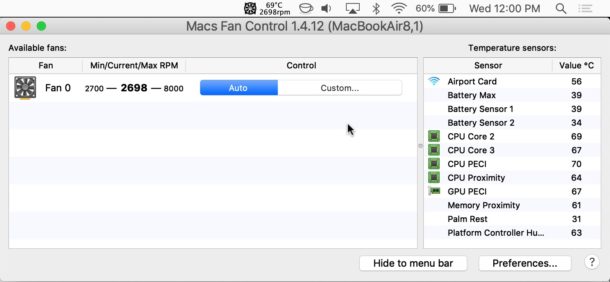
Advanced Mac users may sometimes want to control their Mac’s fan speed, as well as monitor the speed of active fans and keep an eye on the Mac’s various internal temperature readings. This can be useful for performance reasons, for certain troubleshooting situations, or if you want to take drastic action to manually cool down a hot Mac.
The aptly named Macs Fan Control app is just what we need. But remember: the Mac adjusts its fans automatically according to temperature and need, so intervening with this tool is neither wise nor recommended.
Manually controlling your Mac’s fan speed is not without risk, so if you don’t know what you are doing and how to avoid damaging your computer, you should not use this kind of app. Failing to cool a Mac properly can cause performance problems, crashes and even permanent hardware damage. Overworking a fan can also lead to hardware failure. This app and others like it are aimed at advanced users who have enough knowledge and experience to understand what they are doing and why, and to avoid damaging their computers.
Use this app entirely at your own risk, as it could damage your Mac. If you are not a very advanced Mac user, do not use this app and do not attempt to adjust fan speeds.
How to manually control your Mac’s fan speed
Warning: the Macs Fan Control app assumes you are an advanced user. This is the warning provided by the software developer: “This program is intended for advanced users who know how to use it without damaging their Macs. The authors are not responsible for any loss of data, damage, loss of profits or any other kind of loss related to the use or misuse of the program.” Take this warning seriously!
- Download Macs Fan Control from the developer’s website;
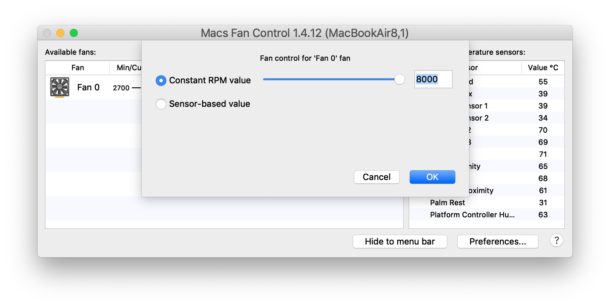
- Launch Macs Fan Control, then click the “Custom” button to manually adjust your Mac’s fan speeds based on a constant RPM value or on a temperature value detected by a sensor;
- Select “Auto” to return to the default settings;
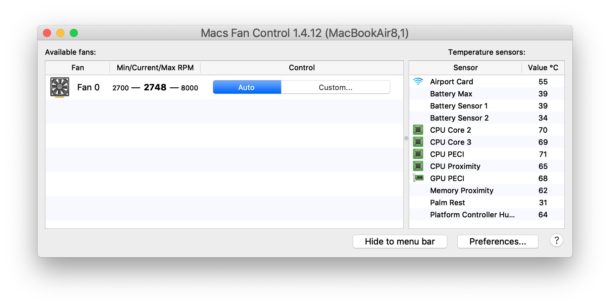
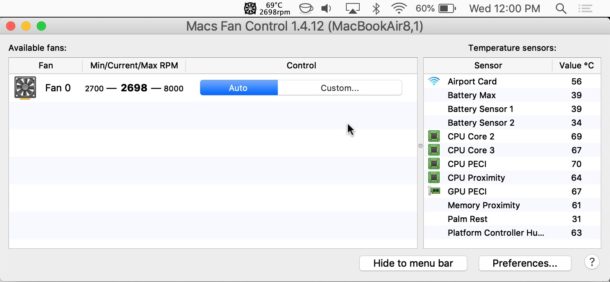
You can monitor the temperature and fan speed from the program’s icon in the menu bar while the app is running.

Likewise, in the Macs Fan Control window you can see the temperature values detected by the various sensors built into the Mac.
If you want to disable or uninstall the program, all custom settings must be reset and cleared before quitting or deleting the app (Macs Fan Control should do this itself, but that is not guaranteed).
If changes to fan behaviour persist, you can perform an SMC reset. Note that resetting the SMC will not fix damaged hardware or a damaged fan, so if you have broken something by misusing the app, that will be your next problem to deal with.
If you use Macs Fan Control and find it useful, it is also available in a Windows version. This is handy if you run Windows via Boot Camp on a Mac and want to control the Mac’s fans manually from the Windows side too.
I cannot stress enough that this type of application is intended for very advanced users who understand the risks of manually interfering with hardware performance and behaviour. The vast majority of Mac users should never attempt to use this type of app to adjust fan behaviour, as they are likely to run into problems they would not otherwise have. If your interest in adjusting fan speed is purely about temperature, a better solution would be to focus on ways to keep your Mac cool in hot weather.
Note that an overheating Mac often freezes: unlike the iPhone, which displays a temperature warning, a Mac typically stops responding to commands, and often even the mouse pointer stops moving. Excessive heat is harmful to electronics and internal components, so do your best to avoid putting your hardware in these situations.
It has been possible to adjust fan speed manually on a Mac for quite some time: long-time readers may remember SMC Fan Control for the Intel Mac line from 2007 onwards, and that tool still works on those older Macs, while Macs Fan Control works on more recent Macs.
Enjoy!
