“Argh, my Mac isn’t working! I need to reset the SMC!” You have tried restarting, you have reset the PRAM, you have done everything, but your Mac is still behaving strangely. What’s the next step? In some circumstances, resetting the System Management Controller (SMC) can be the solution. It is sometimes necessary to restore normal system operation at a basic level, particularly for power and hardware issues.
Below I will show you how to reset the SMC on any type of Mac (running any version of Mac OS X) and the kinds of problems it can solve.
When and why to reset the SMC on a Mac: some common examples
Generally, an SMC reset helps solve many power- and hardware-related problems. Resetting the SMC on a Mac is particularly effective if you experience the following kinds of issues:
- Fan management and cooling problems: fans running constantly at high speed, fans running at high speed despite low CPU usage and adequate ventilation, fans not working at all, etc.
- Power and/or battery management problems: the Mac won’t turn on, sleep doesn’t work, random shutdowns and restarts, the battery won’t charge, the Mac won’t wake from sleep, etc.
- Problems with screen and/or keyboard lighting and/or the MagSafe connector: battery indicator lights not working, display backlight not adjusting to changes in ambient light, keyboard backlight not working, etc.
- Screen and external displays not working: screen brightness controls not working properly, Target Display Mode not working properly, external display not working, etc.
- General performance and functionality problems: abnormally slow behaviour despite no CPU or disk usage, external ports not working, AirPort and Bluetooth not showing up, external devices not being detected, etc.
If your problem is on this list and you think you need to reset the SMC, below I will show you how to do it on any MacBook, MacBook Pro, MacBook Pro with Retina display, iMac, Mac mini and Mac Pro. Note that the System Management Controller reset instructions differ for MacBook and MacBook Pro models depending on whether the machine has an internal or a removable battery, and the procedure is also different for desktop Macs compared with Mac laptops.
Resetting the SMC on a MacBook Air, MacBook Pro Retina or MacBook Pro with a non-removable internal battery
Here is how to reset the SMC on most modern Mac laptops, none of which have a removable battery:
- Shut down your MacBook Air / MacBook Pro
- Connect your Mac to external power
- On the MacBook / Pro keyboard, press and hold the Shift + Control + Option keys and the power button at the same time
- Release all the keys, including the power button, at the same time: the light on the MagSafe adapter may briefly change colour to indicate that the SMC has been reset
- Start up your Mac as usual
Here is the key combination to hold down:
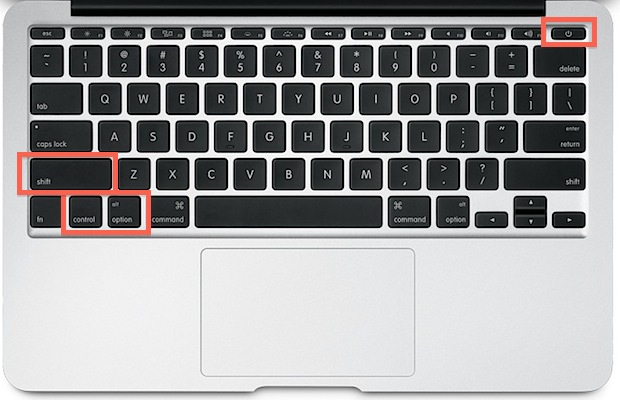
Bear in mind that resetting the SMC will lose your power-related settings, such as how long it takes for a Mac to go to sleep and other custom power settings. It is not a big deal, but if you have made a lot of behavioural changes on your machine, you will need to adjust these settings again.
Start-up time after an SMC reset on a Mac may be a little longer than usual; this is normal.
Resetting the SMC on an iMac, Mac Pro or Mac mini
Resetting the SMC is different for desktop Macs, but it is still quite easy and addresses the same issues. Here is how to reset the System Management Controller on any desktop Mac:
- Shut down your Mac
- Unplug the power cable
- Press and hold the power button for 5 seconds
- Release the power button
- Reconnect the power cables and start up your Mac as usual
Resetting the SMC on a MacBook or MacBook Pro with a removable battery
Older MacBooks, recognisable by their removable battery, can reset the SMC with the following procedure:
- Shut down the MacBook / Pro and remove the battery
- Disconnect the power adapter and press and hold the power button for 10 seconds
- Release the power button and reconnect the battery and power adapter
- Turn on your Mac
- Let it start up as usual
But what is the SMC?
SMC stands for System Management Controller, a fundamental low-level component of Mac hardware.
It is the control system for:
- power management, battery charging and battery behaviour;
- fan activity and thermal behaviour;
- LED lighting for keyboards and the display
- certain GPU functions, such as video mode and output changes;
- sleep mode and waking from sleep;
- other basic hardware functions on a Mac.
Now that the SMC on your Mac has been reset, the hardware problem you were experiencing should be resolved, unless there is a more serious problem or one that needs to be fixed in a different way. Sometimes resetting the PRAM on a Mac can also be effective, although further action is sometimes required. Note that only Intel Macs have an SMC.
I hope this article has solved your problems; otherwise, a visit to an Apple Store or an authorised service provider may be of further help.
Enjoy!
