To use AirDrop on a Mac, you normally access it from the sidebar in a Finder window (or by pressing Cmd + Shift + R after opening a Finder window), but there is a way to add an AirDrop shortcut to the Mac Dock, bypassing the usual method.
It takes just a few simple steps to put the AirDrop icon in the Mac Dock.
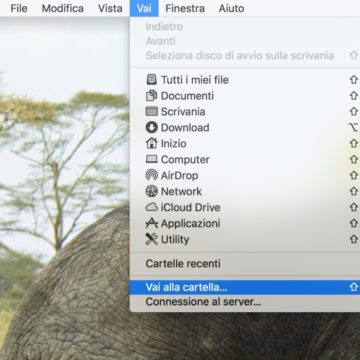
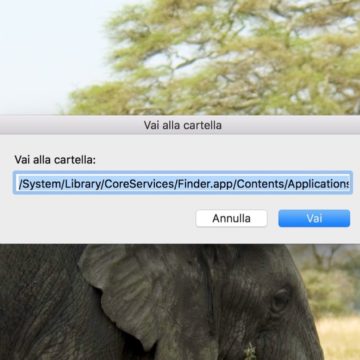
Simply select Go > Go to Folder from the Finder menu bar (or press Cmd + Shift + G), then paste the following path and press Enter:
/System/Library/CoreServices/Finder.app/Contents/Applications/
In the folder that opens you will find the AirDrop icon. Now simply drag it to the Dock to add it to the quick-launch bar.
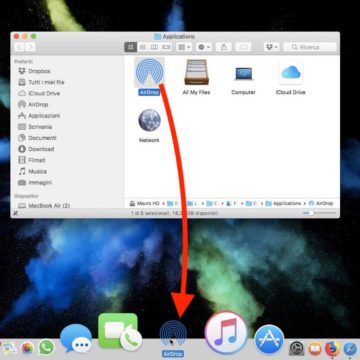
From now on, the next time you need to open the AirDrop window to share files with your own or your friends’ iPhones, iPads or Macs, just click this icon.
Note that this method only works with macOS Sierra, macOS High Sierra and later: this procedure does not work with, for example, Mac OS X El Capitan or earlier.
Enjoy!
