In recent versions of Windows 10, trying to create a user takes you through an endless series of (in my opinion pointless) steps, because you are required to link the user to a Microsoft account.
To avoid all these steps, I will explain how to create a new user from the Command Prompt (cmd). Note that to do this you will need an existing administrator account on the machine.
The first step is to click START at the bottom left and type cmd
As soon as you have typed the three letters, Command Prompt will appear: right-click it and select “Run as administrator” from the drop-down menu.
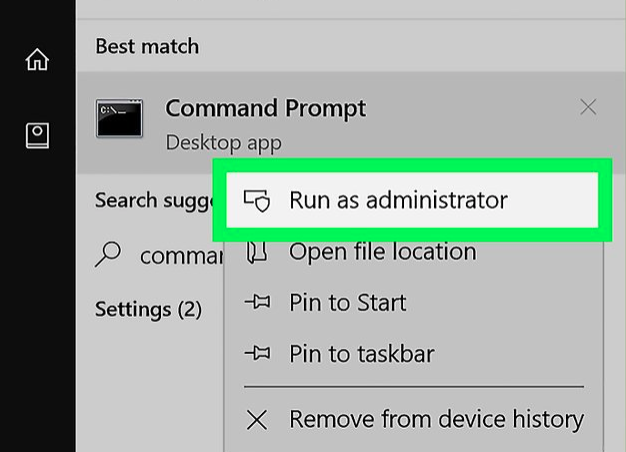
Once you have clicked this option, you will be asked to confirm.
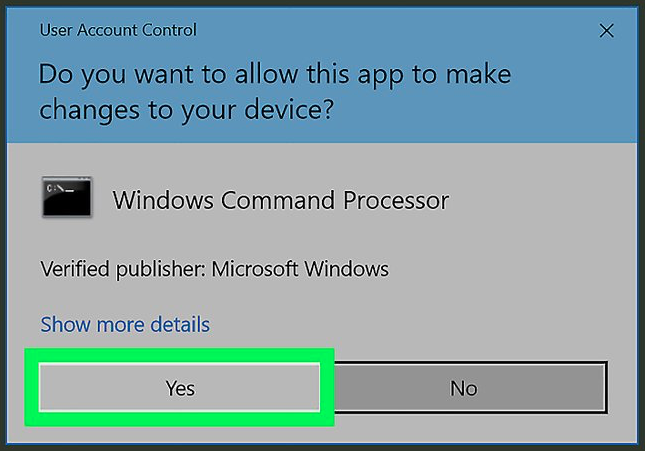
The Command Prompt will then open; simply type the following command:
net user UserName YourPassword /add
of course, replace UserName with the name of the user you want to create and YourPassword with the password you want to assign.
Now, to make this user an administrator on the machine, type the following:
net localgroup administrators UserName /add
again, replace UserName with the name of the user you just created.
Your user has now been created. To test it, log out of the account you are currently using and select your new user on the next screen.
Enjoy!
Enjoy!
