In a previous article I described how to install and configure Apache Guacamole in Docker on a Raspberry Pi.
Today I will describe how to customise the Guacamole login screen.
To make this change, we need to download an additional extension and place it in Apache Guacamole’s “extensions” folder.
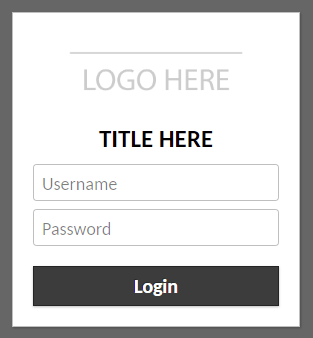
This extension (in the form of a .jar file) is designed to act as a template for customising the Apache Guacamole login screen, allowing you to use different colours, text and/or logos.
As it stands, it comes with a preset logo, caption and colours. These values can of course be changed inside the .jar file without having to build the entire extension from scratch.
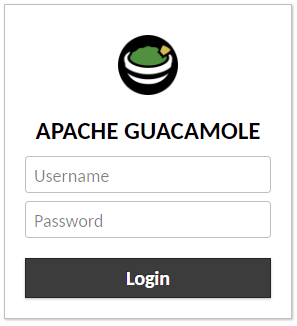
Examples of Guacamole login pages
Default (without this extension)
Using this extension unchanged (branding.jar)
Why use this extension rather than options x, y or z?
The other options may be perfectly valid. The advantage of using an extension (this one or another) to customise the look of the Apache Guacamole login page is that it should persist across updates and can easily be redeployed on other Apache Guacamole servers, or if you need to redeploy an Apache Guacamole server with the same customised login screen. It is also easier to remove the customisation if you no longer need it.
Caveats
I strongly recommend trying this in a test environment before attempting to apply it in production. The potential impact on an existing Apache Guacamole server should be minimal and easily reversible, but it is better to be safe than sorry. In addition, having a Guacamole server with the default login screen can be useful for comparisons and testing.
Before trying the Guacamole branding extension, it is worth consulting this wiki page for detailed information on how the extension works, links to additional resources and so on.
FIRST OF ALL – try loading the extension AS IS, unmodified, to make sure it works BEFORE attempting to modify it.
Downloading the extension
To download the extension, simply connect to your Raspberry Pi via SSH and run this single command:
wget https://github.com/Zer0CoolX/guacamole-customize-loginscreen-extension/raw/master/branding.jar
Make a note of where it is downloaded and of the file name, so that you can easily find it, modify it and finally put it in the right place to deploy it on the Guacamole server.
If you followed my article on installing Apache Guacamole as a Docker container on a Raspberry Pi, you can follow the steps below exactly.
The first step is to copy the branding.jar file into Apache Guacamole’s extensions folder, so run the following command:
sudo cp branding.jar /home/pi/guacamole/config/guacamole/extensions
The second step is to restart the Guacamole container with the following command, so that it loads the newly added extension:
docker restart guacamole
Wait a few seconds, then check whether the extension has loaded correctly by opening your Apache Guacamole web page (I recommend using a private/incognito window so that images/content already cached by your browser are not used).
How to modify the extension to customise the Apache Guacamole login screen
First of all, I recommend viewing the default login page and using your browser’s developer tools to inspect the page’s elements and CSS. You can also make changes using these tools and see them “live” without having to touch any files on the machine hosting the service. Note down the settings you want and use them as a guide to modify the extension to suit your needs.
The branding.jar file is basically a container file like a .zip archive, which means it contains other files. You can use archive managers such as 7-Zip to open the .jar file and view/edit the files it contains.
The internal structure of the branding.jar file is:
- css (folder) -> .css (file)
- images (folder) -> logo file with .png extension
- translations (folder) -> en.json (file) and other language files if needed
- guac-manifest.json (file), which ties all the parts together so that Guacamole knows what to use.
Background colours, the logo image used and other cosmetic changes to the page are implemented by editing the style sheets in the .css file.
The images folder contains only the logo file. This has only been tested with a .png file.
The .json files in the translations folder determine the text displayed for the title (by language).
Finally, the guac-manifest.json file ties all these parts together so that Guacamole can use them to customise the login screen to the desired specifications.
Enjoy!
