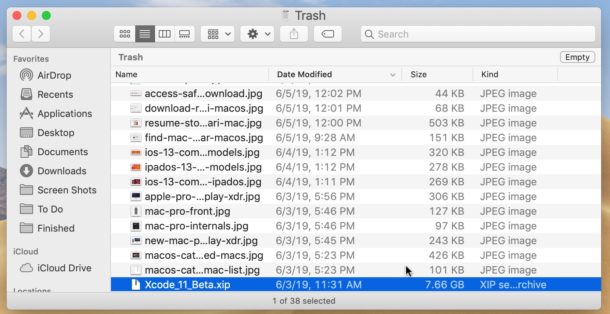
If you have lots of files in your Mac’s Trash but don’t want to empty the whole Trash for whatever reason, you can use a handy feature to delete specific files or individual folders from the Trash. This lets you target and selectively delete individual items in the Mac Trash without emptying and deleting everything, which can be useful if you want to review other files in the Trash before removing them from the Mac for good.
For example, if you have 1,000 items in the Trash on a Mac but want to delete a single 8 GB file, you can target that 8 GB file for immediate deletion while ignoring the other items in the Trash. Using this handy “Delete Immediately” trick is quite simple; here’s how it works.
How to delete specific files from the Trash on a Mac without emptying the entire Trash
- Open the Trash on your Mac as usual by selecting it from the Dock
- Locate and select the file or item you want to delete individually in the Trash
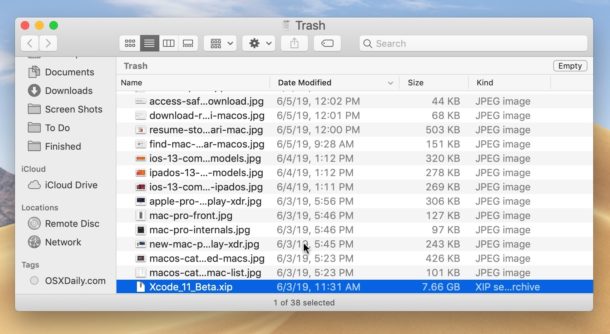
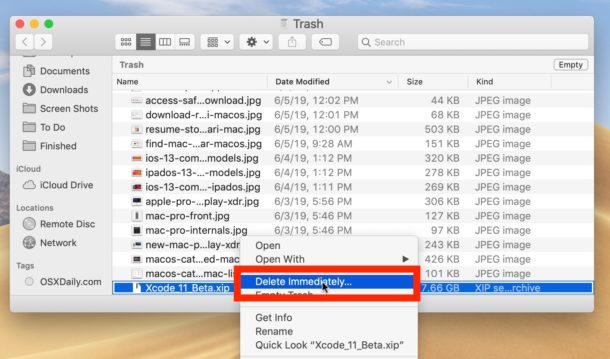
Right-click the icon or name of the individual file and choose “Delete Immediately”
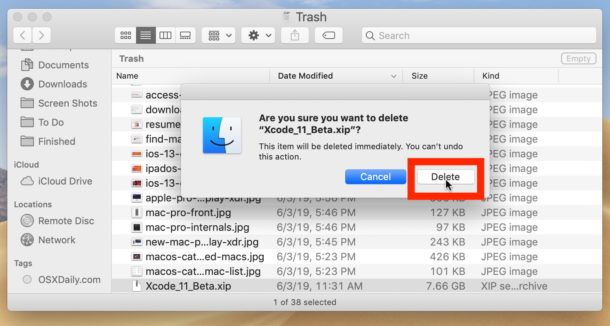
Confirm that you want to immediately delete the chosen file or document from the Trash
Repeat with other specific files to delete them immediately as required (if needed).
This is a particularly useful trick if you are sifting through a very large or cluttered Trash on a Mac, as you can target individual large files to free up disk space.
In the example screenshots shown here, a 7 GB Xcode installer was specifically selected for immediate deletion from the Trash, without deleting the other files found in the Trash.
Some other useful tips for managing large Trash folders are using Quick Look to peek at files in the Trash (since items in the Trash cannot be opened, but they can be previewed with Quick Look) and learning how to undo moving files to the Trash on a Mac with the “Put Back” feature, which returns the file from the Trash to its original location — useful if you decide you don’t want to delete that file or item after all. And of course, if you keep forgetting to empty the Trash, you can always set it to empty automatically on your Mac, which deletes items once they have been in the Trash for 30 days.
If this sounds vaguely familiar, that may be because elsewhere in the Mac Finder you can use “Delete Immediately” to bypass the Trash entirely and instantly delete a file from the Mac, without ever having to use or empty the Trash.
Enjoy!
