Want to do a reverse image search with Google on your iPhone using Safari or Chrome? If you have ever wanted to get information about an image or verify its authenticity online, you can do so with this workaround.
This excellent tool has been available for years and is widely used in desktop browsers such as Chrome, Safari and Firefox. By visiting Google Images, anyone can search by image from their computer or tablet in a matter of seconds.
However, smartphones like the iPhone do not have desktop-class web browsers; instead, they come with a mobile browser optimised for smaller screens. As a result, searching by image on an iPhone may require a few extra steps.
So you’re wondering how to search by image on your iPhone? If so, you’ve come to the right place, because in this article I will explain exactly how to do a reverse image search on an iPhone using two different methods. Let’s take a look at the process.
How to search by image on iPhone using Safari
We’ll start with Safari, since it comes preinstalled on iOS and iPadOS and is the go-to web browser for almost all iPhone and iPad users. Unlike a desktop browser, Safari does not offer the option to search by image in the Google search bar, but there is a workaround.
Open “Safari” from your iPhone’s home screen and go to images.google.com.
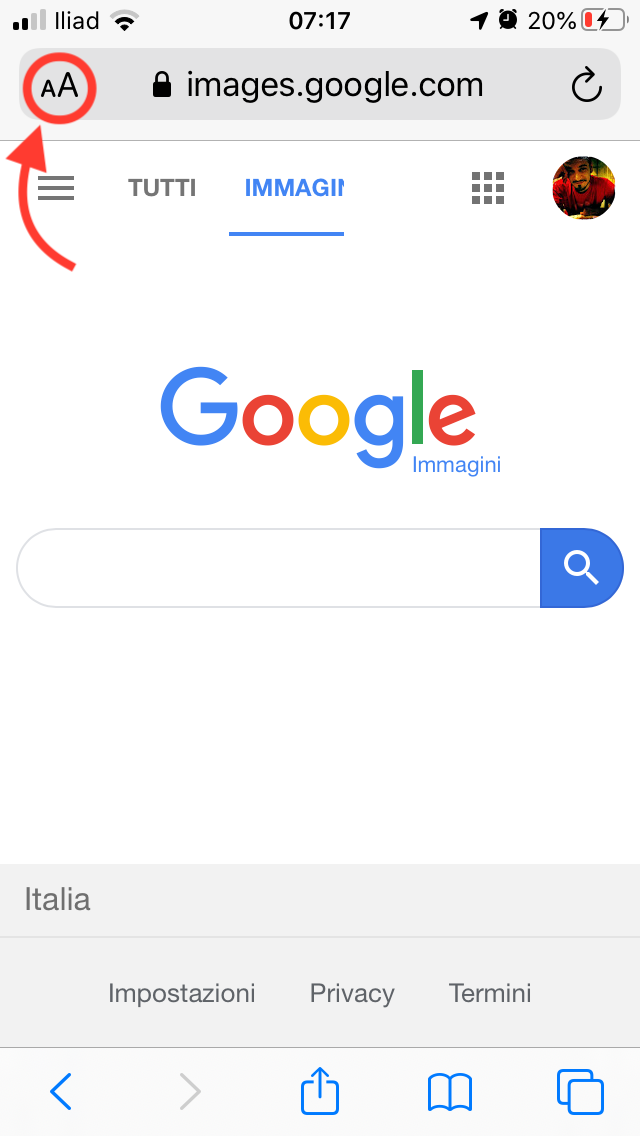
As you can see in the screenshot below, the search bar lacks the camera icon found in desktop browsers that lets you search by image. Tap the “aA” icon on the left of the address bar, as shown in the screenshot below.
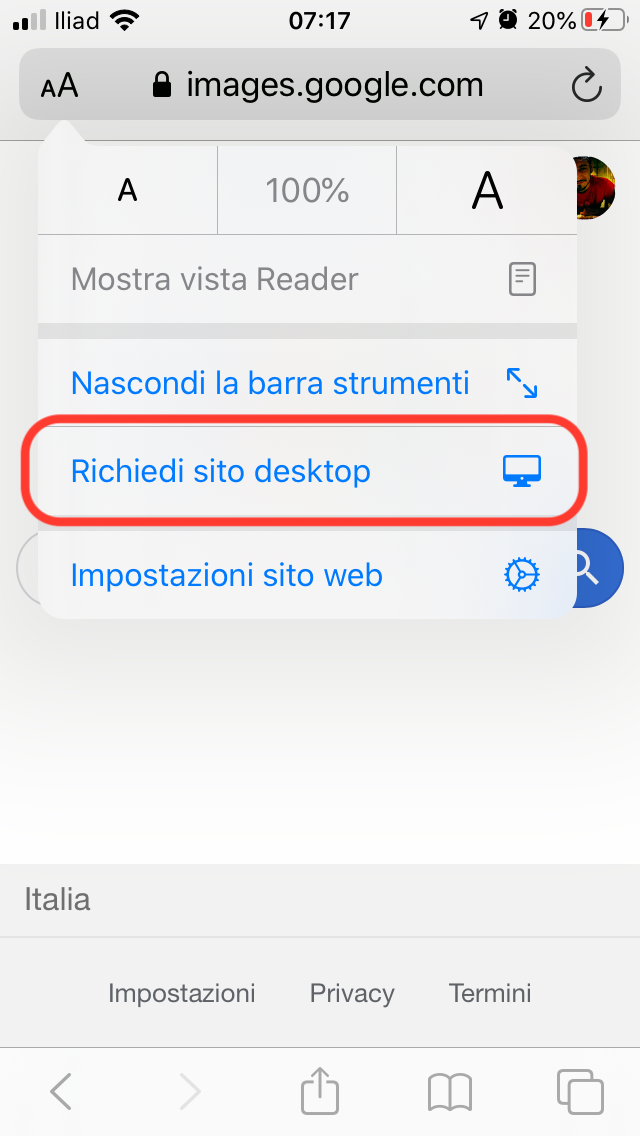
A pop-up menu will appear in which you can adjust website settings, switch to Reader mode and more. Tap “Request Desktop Website” to reload the site in its desktop version.
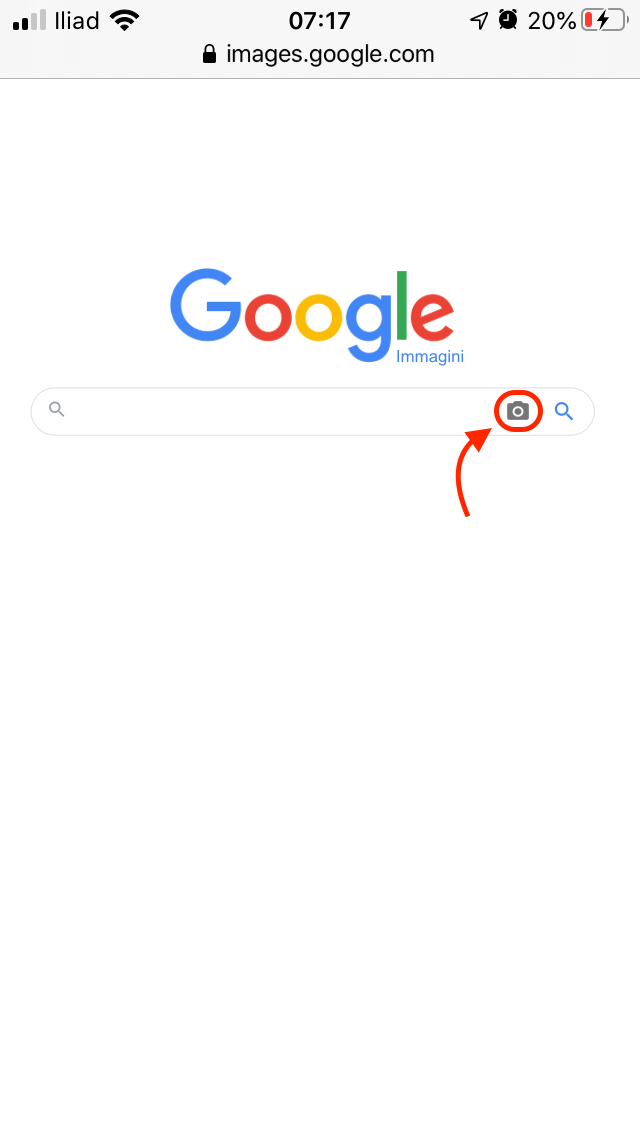
Now that you are on the desktop version of Google Images, you will notice that the option to search by image now appears in the search bar. Tap the “camera” icon on the right-hand side of the search bar.
You will now be able to search by pasting the image URL, or you can simply upload/capture an image from your iPhone. To search using an image stored on your iPhone, tap “Choose File” and then select “Photo Library” to browse through the “Camera Roll” and other albums to find the image you want to upload.
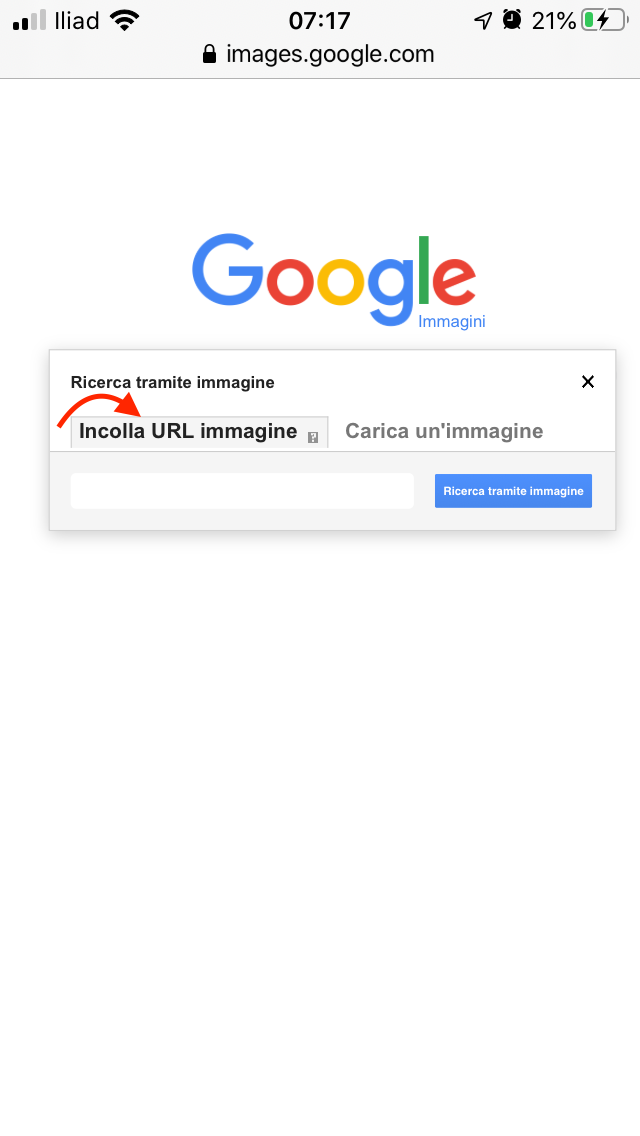
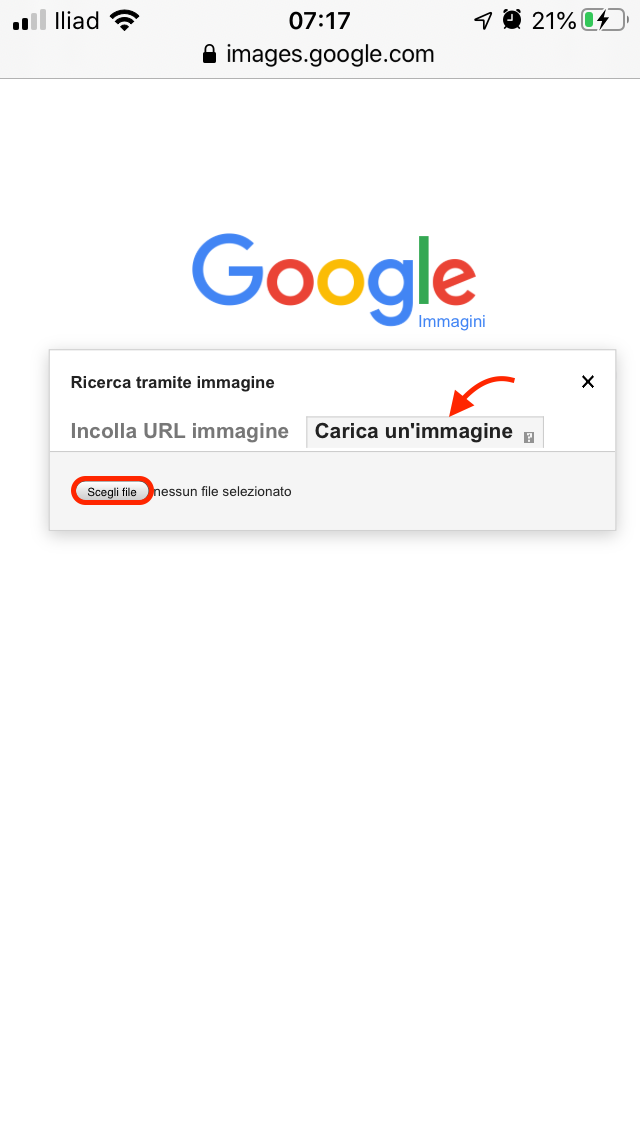
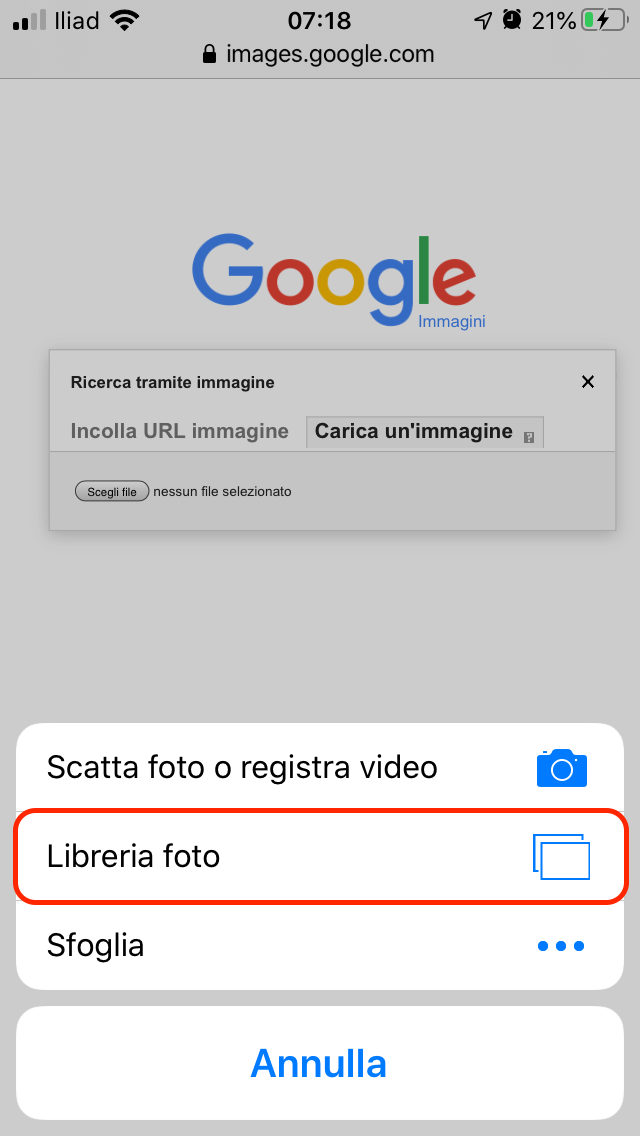
Google will automatically start searching once the photo has been uploaded and, as you can see here, it has retrieved results related to the uploaded image.
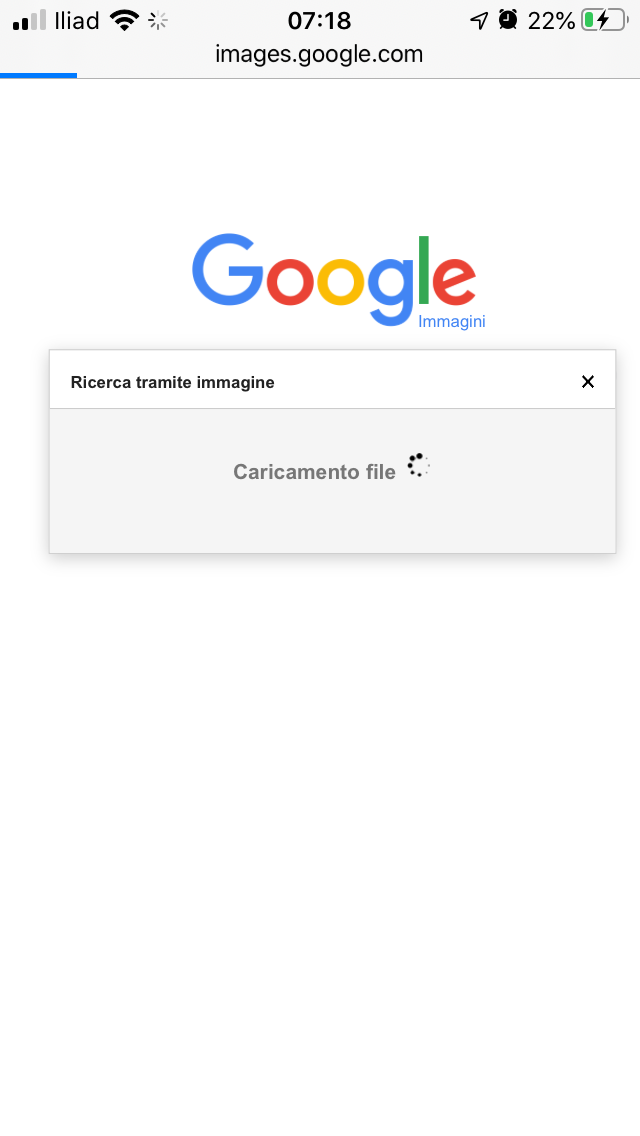

That’s how you can do a Google reverse image search in Safari on an iPhone.
But what about some of the other common web browsers you might use on your iPhone? Next, we’ll cover reverse image search in Chrome for iPhone.
How to search by image on iPhone using Google Chrome
Safari may be the default browser on iOS, but the popularity of Google Chrome on Apple’s App Store cannot be overlooked. It is undoubtedly the most popular third-party web browser for the iPhone. You can request the desktop site in Chrome to search by image, just as you did in Safari, but Chrome also offers something Safari doesn’t, as we’ll see.
Open the “Chrome” web browser from your iPhone’s home screen.

Visit any web page and open an image you want to search for. It doesn’t have to be Google.
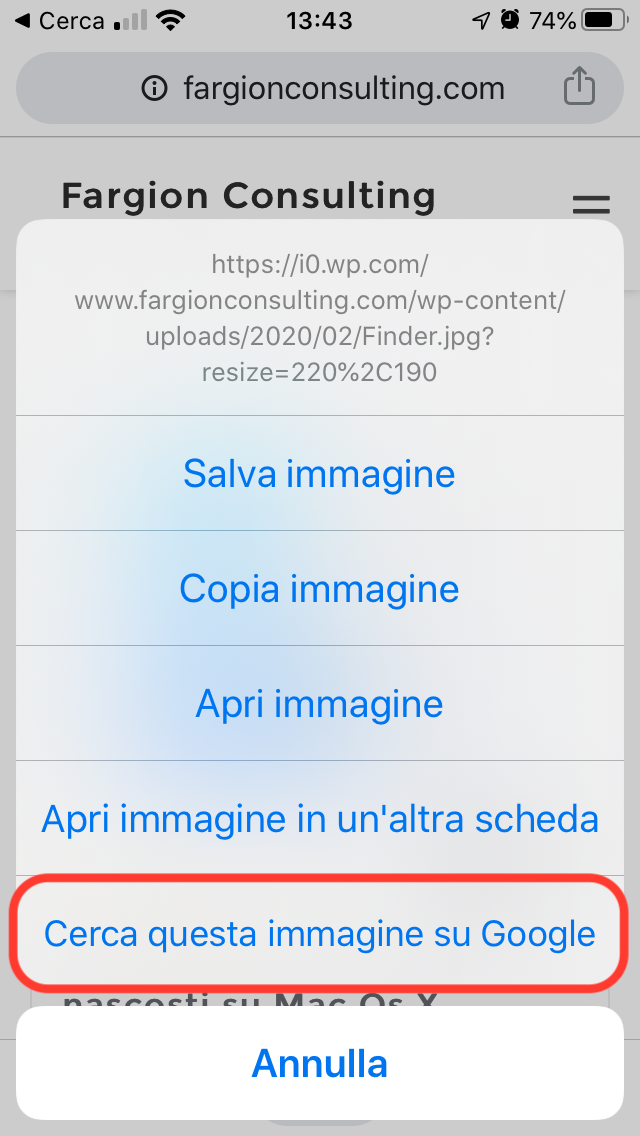
Press and hold the image until a menu appears at the bottom of the screen. Here you will see an option that lets you reverse-search the image directly, without having to save and re-upload it or copy its URL. Tap “Search Google for This Image” to start the reverse search.
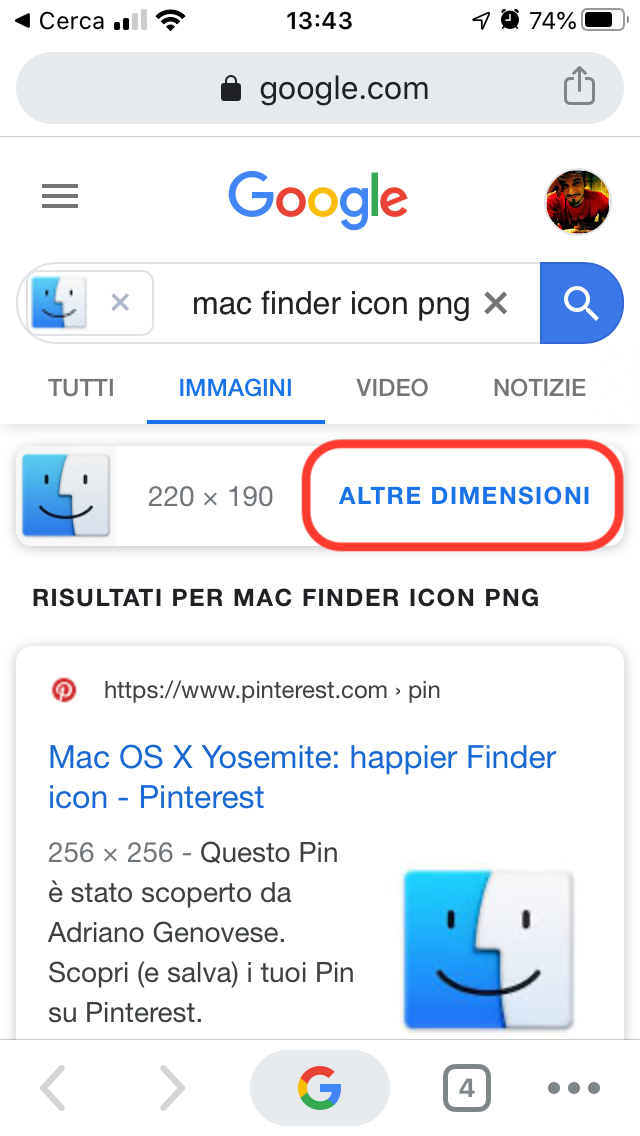
As you can see in the screenshot below, unlike Safari, Google does not redirect you to the desktop version of its web page when displaying search results.
Tap “More sizes” if you want to find higher-resolution versions of the image you just searched for.
That’s all there is to it with Chrome on iOS, which makes searching by image easy. It is essentially just as simple to search by image in Chrome’s desktop browser, whether on Mac, Windows, Linux or a Chromebook.
Users have wanted to be able to search by image on the mobile site for images.google.com for some time, so it is somewhat surprising that the feature has still not been implemented directly for all web browsers.
In fact, there are many other search engines dedicated to reverse image search, such as TinEye, Yandex, etc. You could also use third-party reverse image search apps available on the App Store, such as Reversee or Veracity. Here, of course, we are covering Google’s image search, but only because it is the search engine that returns the most results compared with any other, and it is used by almost everyone who goes online, so many argue it is the most relevant and perhaps even the best.
Searching by image has made it easier to find the source of an image or get more information about an object you know nothing about. Some people even use it to find a higher-resolution version of an image or to check whether an image is genuine, and it is a commonly used tool for tracing and verifying memes, viral images and fake news. Thanks to this feature, it has become increasingly difficult for people to pose as someone else online and get away with it, since cautious users tend to verify the authenticity of images using this search method.
Enjoy!
