In many cases, to manage your Linux servers you may need to allow remote access, which can be done via Secure Shell (SSH). Linux systems have long been able to use SSH from the native terminal, but this was not the case for Windows systems, which required additional tools to be installed.
In recent years, Microsoft Windows has seen many improvements, so there is no need to install additional software (such as PuTTY): you can use the native tools available. In this guide I will explain how to log in via SSH to a Raspberry Pi (Linux) from a Windows workstation using the native tools.
What you need to know about SSH
Secure Shell is a secure, encrypted connection protocol that enables secure remote access over unprotected connections. It works in client-server mode, so the connection is established by the SSH client connecting to the SSH server.
SSH offers several options for user authentication. The most common are password and public key authentication:
- password: works like the usual process on a local computer, which means you need the username and password of an existing account on the server.
- public key: the principle is to have a pair of cryptographic keys, a public key and a private key, where the public key is configured on the server to authorise access and grant anyone with a copy of the private key access to the server.
1) Installing the “OpenSSH Client” feature on Windows 10
Windows machines now let us use native tools to establish an SSH connection, but first we need to make sure the OpenSSH Client feature is installed. It is not normally installed by default, so follow these steps to do so.
Click START (the Windows logo at the bottom left of the screen) → Settings → Apps & features → Optional features
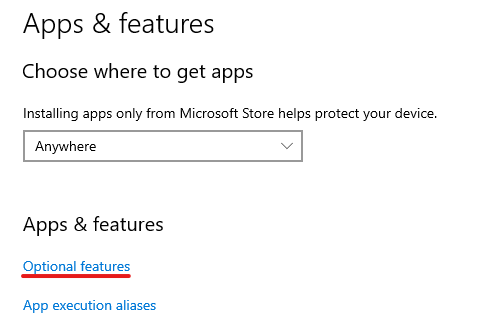
Click “Add a feature”

and in the window that follows, search for “OpenSSH“
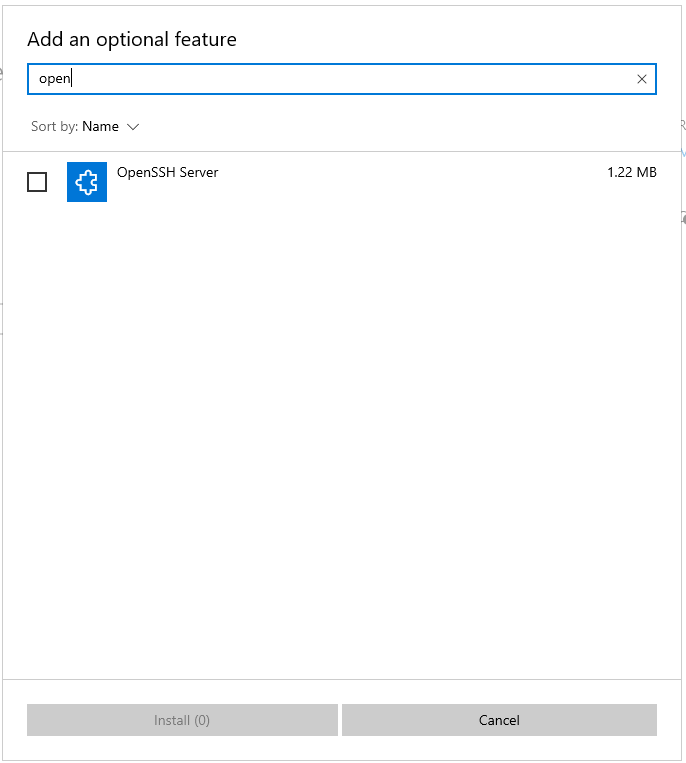
select the package and finally click the “Install” button

2) SSH connection via Windows PowerShell and/or the Command Prompt (CMD)
Now we can use the Command Prompt or Windows PowerShell to access our Linux server via SSH.
a) SSH via Windows PowerShell
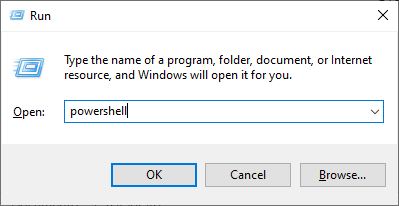
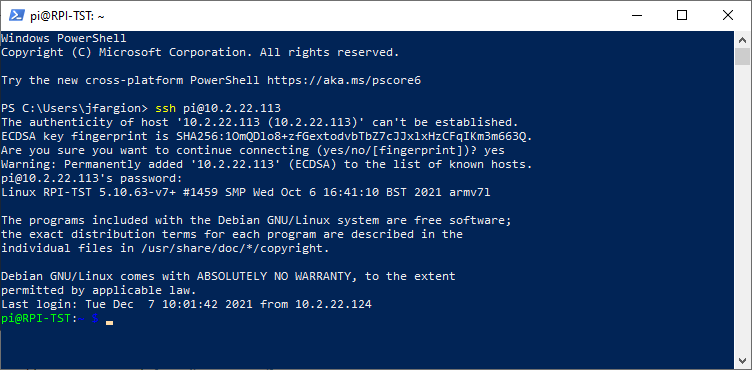
The native Windows PowerShell tool lets us connect remotely to a server via SSH. Simply launch it with Windows + R, type powershell and then click OK.
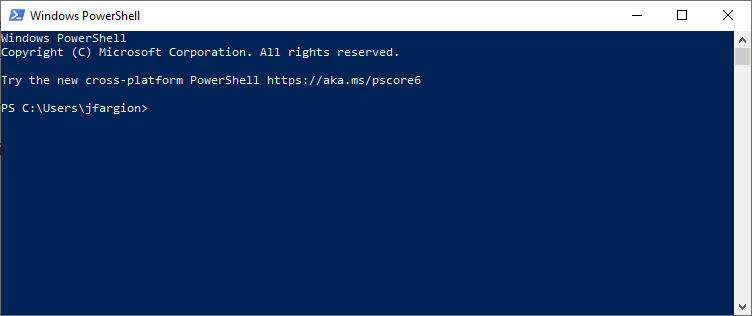
Now enter the SSH command to connect to the remote Linux server:
ssh pi@10.2.22.113
of course, replace:
– “pi” with the username enabled for SSH access on your Linux system;
– “10.2.22.113” with the IP address of your Linux system (the Linux machine’s hostname will also work)
b) SSH via the Command Prompt (CMD)
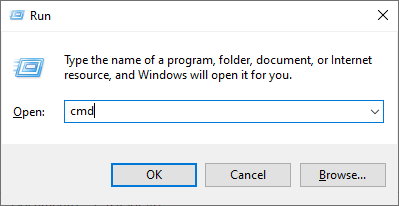
To access your Linux server remotely from the Command Prompt, simply launch it with Windows + R, type cmd and then click OK.
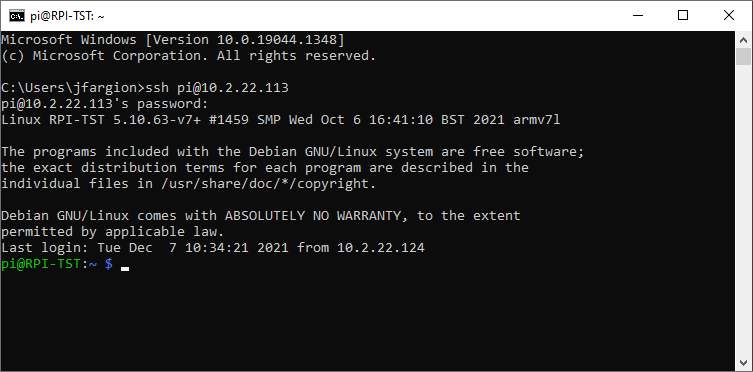
Now, in the Command Prompt, you can use the ssh command just as with PowerShell.
You now know how to connect to your remote Linux server via SSH with the native tools provided by Microsoft Windows. You can also choose to use PuTTY, but at this point it is simpler and more convenient to use the built-in tools.
Enjoy!
