Portainer.io provides full management of Docker Engines (local, remote and clustered) through a convenient web interface.
With Portainer.io you can do everything Docker allows, such as:
- Creating containers
- Managing images
- Managing container state
- Monitoring host resource usage
Running Portainer on our Raspberry Pi Docker server is very simple: once the Docker engine is running, just run the following commands in the terminal:
docker volume create portainer_data
docker run -d -p 9000:9000 -p 8000:8000 --name portainer --restart always -v /var/run/docker.sock:/var/run/docker.sock -v portainer_data:/data portainer/portainer
The first command creates the “portainer_data” volume, a virtual drive that will hold Portainer’s data, while the second command builds the container from the portainer/portainer image, naming it “portainer”.
Leave the terminal, open your browser and go to this URL:
http://192.168.1.100:9000/
(be sure to replace 192.168.1.100 with your Raspberry Pi’s IP address).
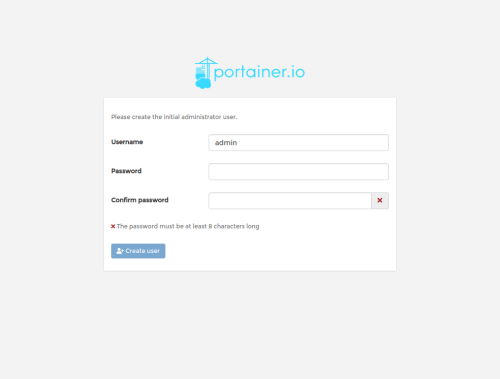
You will now see Portainer’s first screen, where you will be asked to set the username and password for the “admin” user.
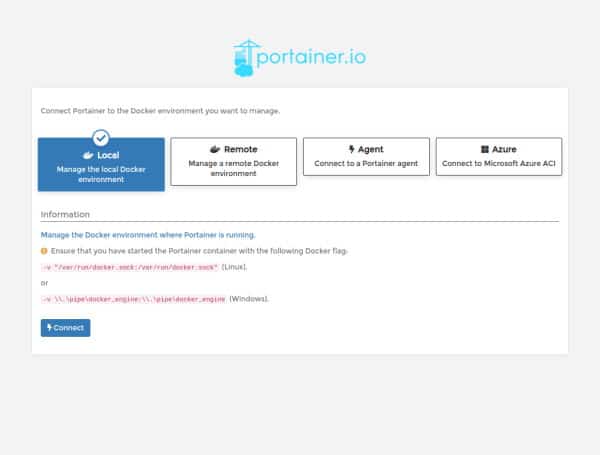
As soon as you have created the administrator user, you will be taken to a screen where you need to select the connection to your Docker environment.
Portainer is designed to be connected to “local” nodes or to Swarm clusters. In our case we will simply connect it to the Docker instance installed on the Raspberry Pi, so select local and then click “connect”.
Portainer is now installed and running.
To make Portainer start automatically every time the Raspberry Pi restarts, select Containers in the left-hand menu,
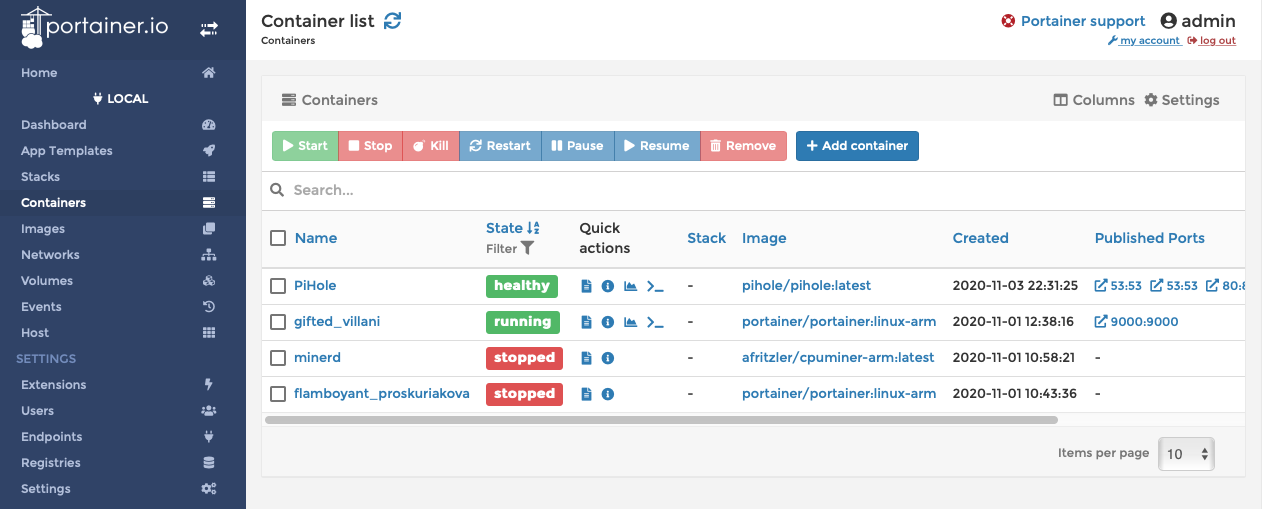
then click the name of your container, in this case “gifted_villani”.
Scroll down to the “Container details” section and, in the “Restart policies” menu, select “Unless Stopped”.
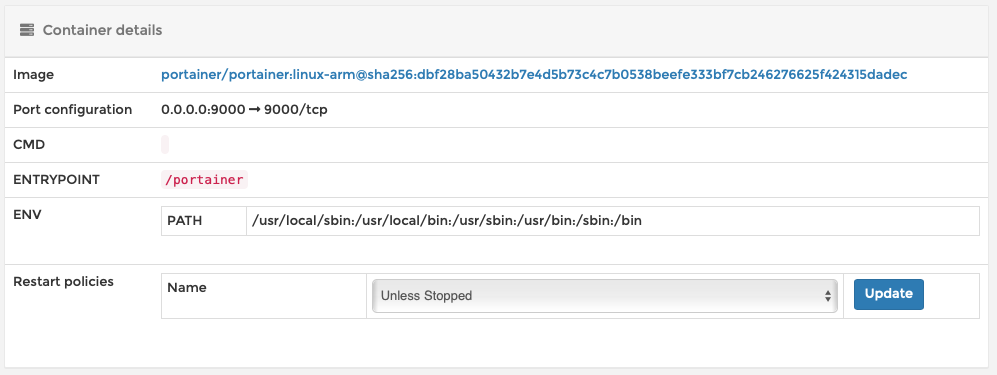
This option means that the container will always restart if it crashes and will also start after the Raspberry Pi boots.
Upgrading Portainer to the latest version
If you are notified of a new version when you open the Portainer web page, you can upgrade from the terminal with the following commands:
docker stop portainer
docker rm portainer
docker pull portainer/portainer-ce
docker run -d -p 8000:8000 -p 9000:9000 --name=portainer --restart=always -v /var/run/docker.sock:/var/run/docker.sock -v portainer_data:/data portainer/portainer-ce
Enjoy!
