Want to disable Launchpad on your Mac? If you want to turn off Launchpad for any reason, or simply stop it opening accidentally in Mac OS X, you can do so by disabling the feature completely.
By way of background, Launchpad is a Mac OS X feature that displays a screen of app icons, somewhat reminiscent of an iPad or iPhone. You can access Launchpad with a trackpad gesture, by pressing the F4 key, or by opening the Launchpad app from the Dock or the Applications folder. Some users may find this feature really useful, while others may find it inconvenient or even pointless, especially if they open Launchpad through an accidental pinch gesture on the trackpad, by tapping the F4 key or by clicking the app’s Dock icon.
This article shows how to disable the Launchpad gesture, remove the Launchpad icon from the Dock and disable the F4 key function on a Mac to turn Launchpad off for good.
How to disable Launchpad gestures on a Mac
This disables the Launchpad gesture on any Mac using a trackpad:
- Open the Apple menu and go to “System Preferences”
- Choose “Trackpad”, then choose “More Gestures”
- Find “Launchpad” in the list of gestures and untick the box next to “Launchpad” to disable the Launchpad pinch gesture on your Mac
- Close System Preferences
This will disable the Launchpad pinch gesture.
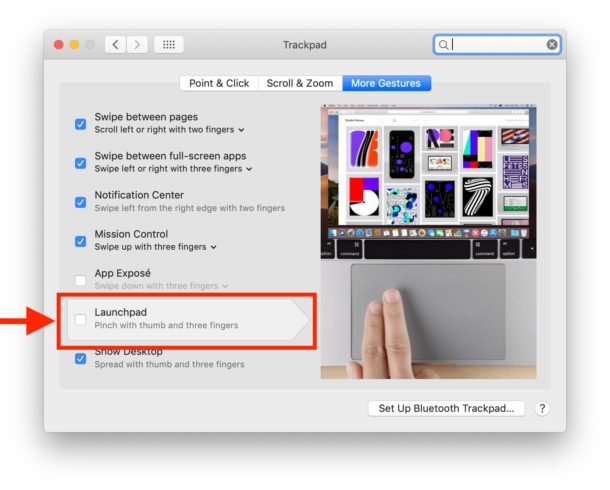
You may also want to remove the Launchpad app icon from the Mac Dock.
How to remove Launchpad from the Mac Dock
Click and hold the Launchpad icon, then drag it out of the Dock and wait a moment for the “Remove” label to appear, then release the Launchpad icon
This will remove Launchpad from the Dock on your Mac.
Finally, you may want to change or remove the keyboard shortcut for Launchpad on your Mac.
How to change or remove the Launchpad keyboard shortcut on a Mac
- Open the Apple menu and go to “System Preferences”
- Go to “Keyboard”, then “Shortcuts”, and choose “Launchpad & Dock”
- Untick the “Show Launchpad” box to disable it, or click the keyboard shortcut to set it to something else
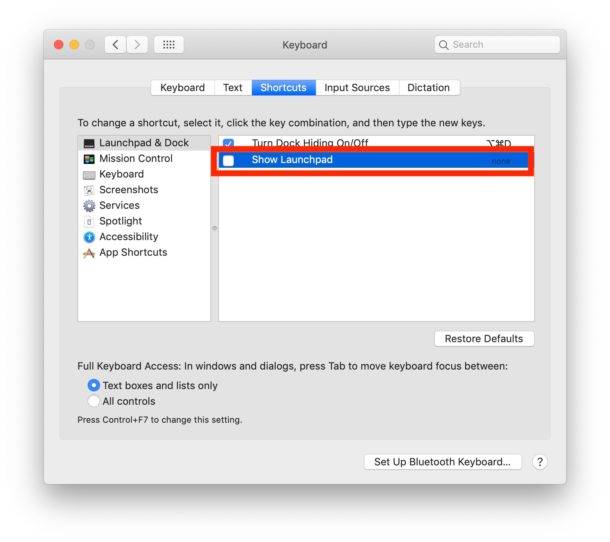
This process should be familiar to anyone who has set up a custom keyboard shortcut on a Mac; rather than creating a new one, in this case you are disabling or changing an existing key combination.
Enjoy!
