In this tutorial we will look at the main keyboard shortcuts in Windows 10. Windows 10 keyboard shortcuts are key combinations that trigger specific operating system commands.
Once you have mastered these commands, you can streamline your workflow and boost your productivity, as tasks that previously required several mouse clicks can now be performed by pressing a few keys at once.
Here are the best shortcuts you can try right away.
Windows 10 system keyboard shortcuts
These shortcuts can be used to lock the device or open specific menus.
(1)
 | Press the Windows key to open and close the Start menu. |
|---|
(2)
 | Opens the Action Center, which is usually opened by clicking the notification icon in the bottom right-hand corner of the screen. |
|---|
(3)
 | Opens File Explorer. |
|---|
(4)
 | Opens the Xbox Game Bar when playing a video game on your computer or laptop. |
|---|
(5)
 | Opens system Settings. |
|---|
(6)
 | Opens the Connect menu to connect your Windows 10 device to other devices via Bluetooth. |
|---|
(7)
 | Immediately locks your Windows 10 device and returns you to the sign-in screen. This is particularly useful if you need to quickly hide what you are doing from someone, or if you need to leave your desk for a few minutes. |
|---|
(8)
 | Lets you cycle through language and keyboard options. |
|---|
Windows 10 app keyboard shortcuts
These keyboard commands can be a convenient way to open, close or control specific Windows 10 applications.
(1)
 | This hides all open applications and takes you straight to the Windows 10 desktop. Using this command a second time brings all open applications back into view. |
|---|
(2)
 | Minimises all open applications and windows. |
|---|
(3)
 | Snaps an application or window to the left-hand side of the screen. |
|---|
(4)
 | Snaps an application or window to the right-hand side of the screen. |
|---|
(5)
 | Maximises all open applications and windows. |
|---|
(6)
 | Minimises all applications and windows. |
|---|
(7)
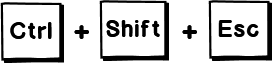 | Opens Task Manager, which shows all running applications and how much processing power they are using. |
|---|
(8)
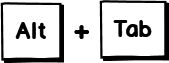 | Displays all open applications and lets you switch quickly between them. |
|---|
(9)
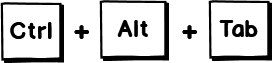 | Shows all open applications. |
|---|
(10)
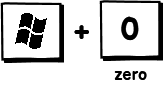 | Opens the Sticky Notes app in Windows 10. |
|---|
Windows 10 clipboard keyboard shortcuts
Copying and pasting text by right-clicking works, but these shortcuts are much faster.
(1)
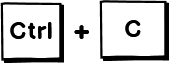 | Copies the selected text to the clipboard. |
|---|
(2)
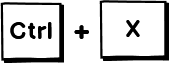 | Cuts the selected items. |
|---|
(3)
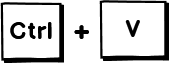 | Pastes the cut or copied content. |
|---|
(4)
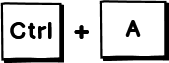 | Selects all the content in an open application or window. |
|---|
(5)
 | Copies an image of the entire screen to the device’s clipboard. This can be pasted into an image editing application such as Photoshop or Paint. |
|---|
(6)
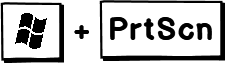 | Takes an image of the entire screen and saves it in the “Pictures” folder of your Windows 10 device. |
|---|
Windows 10 “Cortana” keyboard shortcuts
(1)
 | Opens Cortana’s home window, allowing you to search by voice or keyboard input. |
|---|
(2)
 | Opens the Cortana prompt |
|---|
Enjoy!
