In this article I wanted to provide a very short guide to shutting down your Mac automatically on scheduled days and at scheduled times, so that you can leave the machine running for as long as it takes to complete a particular task. It is a very useful trick, for example to leave the Mac on overnight until a specific time, or to leave the machine running in another location without having to go back to switch it off. Just a few clicks are enough to set up automatic shutdown, and the whole process is of course reversible.
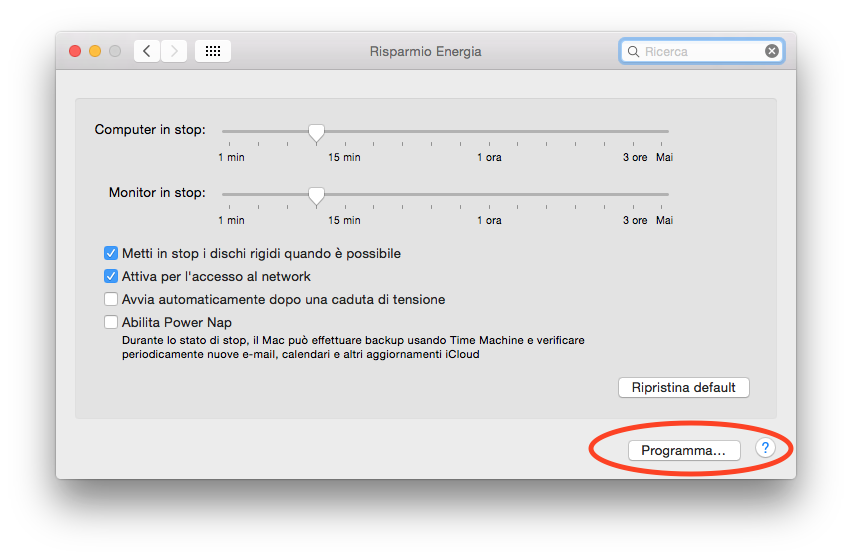
To schedule your Mac to shut down automatically, simply open System Preferences and then the Energy Saver pane. From here, click the Schedule button in the bottom right-hand corner. In this window you can enable the Sleep or Shut Down option simply by ticking the corresponding checkbox. Once you have ticked this box, which is initially empty, you can choose Shut Down, Sleep or Restart, and select the days of the week and the times at which the Mac should perform these operations fully automatically.
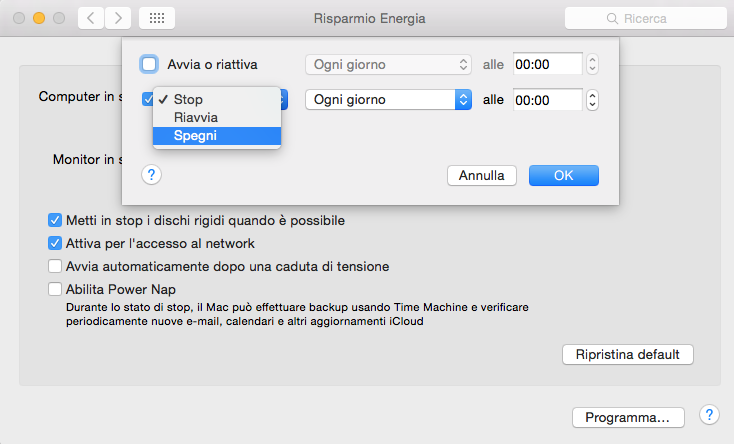
From the same window you can also choose to Start up or Wake the Mac at a scheduled time and on scheduled days of the week. Of course, the operation is reversible: simply untick the Shut Down or Start up boxes to disable automatic shutdown or wake-up.
Enjoy!
